Installing and Starting FMS Toolbox
Use the CygNet Client Installer (CygNet\Clients\CInstall.exe) to install the CygNet FMS Toolbox application. The CygNet Client Installer sets up integrated version management to ensure that you have the latest version of the application files. See CygNet Client Installer for more information.
Installing FMS Toolbox
To Install and Start CygNet FMS Toolbox Using the CygNet Client Installer
- Open the CygNet Client Installer (Start Menu > All Programs > CygNet > CygNet Client Installer). The CygNet Client Installer/Launcher dialog box will be displayed.
|
Client Installer/Launcher |
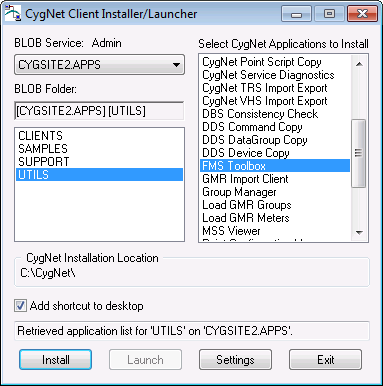
- On the Blob Service: Admin drop-down menu, select your APPS Site.Service.
- In the Blob Folder: list, select UTILS to access the list of utilities available for installation.
- In the Select CygNet Applications to Install list, select FMS Toolbox.
- Click the check box adjacent to Add shortcut to desktop to select/clear this feature. Selecting this feature ensures that you have version management settings.
- Click Install. A confirmation message will be displayed asking if you want to start the application.
- Select Yes to start FMS Toolbox.
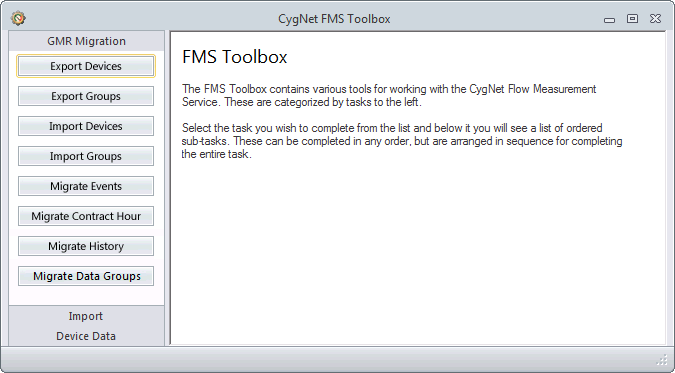
When the application is started, the CygNet FMS Toolbox dialog box will appear.
|
CygNet FMS Toolbox |

Starting FMS Toolbox
After installation, there are several ways to start FMS Toolbox. Some methods provide version management and some do not.
Methods Providing Version Management
Once FMS Toolbox has been installed using the CygNet Client Installer, you can open the application using either of the following methods. Both of these methods provide version management for the FMS Toolbox application.
- Start the application using the CygNet Client Installer.
Follow the installation procedure above to step 6 and then click Launch.
- Start the application using the Start menu shortcut.
From the Start menu, browse to Programs > CygNet > CygNet FMS Toolbox and click the application icon
 .
.
Methods Not Providing Version Management
Alternatively, you can open the application using either of the following methods. These methods do not provide version management.
- Start the application using Windows Explorer.
Browse to the CygNet\Utilities directory and double-click the FMS Toolbox executable (FmsToolbox.exe).
- Start the application from a command line.
In the command window, specify the location of the FMS Toolbox application, C:\CygNet\Utilities\FmsToolbox.exe in the following example. See Running a Command-Line Utility for more information.
Note: You can use this method to automate GMR Migration operations (Events, Contract Hour, and History) using a third-party scheduler such as the Microsoft Windows Task Scheduler.
Command-line Parameters
Available command-line parameter options for use in FMS Toolbox can be viewed by typing /Help into the command window following the application location. Options are described in the following table.
| Parameter | Description |
|---|---|
|
/CfgXml |
To automate GMR Migration operations by utilizing an XML file, specify the parameter /CfgXml followed immediately by the path to the desired file (file path.xml), shown as /CfgXml file path.xml in the following example. This tells the service to run the FMS Toolbox operations using the configurations contained in the specified XML file. |
|
/AutoClose |
To automatically close the application once your operations are finished (recommended, especially for scheduled operations), include the parameter /AutoClose, as shown in the following example. |
Note: Enter the file path and the parameters precisely, as both are case sensitive.
Example
Enter the location of the FMS Toolbox application and optionally include the XML parameter and file path, and/or the auto-close parameter, as follows.
|
C:\CygNet\Utilities\FmsToolbox.exe /CfgXml file path.xml /AutoClose |
XML Configuration File
Note: For elements that have angle brackets (< and/or >) as a part of their name, such as the <ALL_METERS> group name, make sure you use the equivalent XML designations (< and/or >) instead of the angle bracket symbols, so that the XML is read properly and not mistaken as a tag or an error. For example, use <GroupName><ALL_METERS></GroupName> but do not use <GroupName><ALL_METERS></GroupName>
Example
The .xml file specified contains the values for the required GMR Migration fields as follows.
<?xml version="1.0"?>
<ToolboxConfig>
<Operation opType="MigrateEvents">
<GmrSvc>SAMPLE1.GMR</GmrSvc>
<FmsSvc>SAMPLE1.FMS</FmsSvc>
<AuditCategory>SampleAudit</AuditCategory>
<AuditComment>SampleComment</AuditComment>
<LoadFromResults>false</LoadFromResults>
<StartDate>T-7</StartDate>
<EndDate>T</EndDate>
<Groups>
<GroupName>SampleGroup</GroupName>
</Groups>
<ResultsFile>Sample.csv</ResultsFile>
<VerboseMessage>true</VerboseMessage>
</Operation>
<Operation opType="MigrateHistory">
<GmrSvc>SAMPLE1.GMR</GmrSvc>
<FmsSvc>SAMPLE1.FMS</FmsSvc>
<AuditCategory>SampleAudit</AuditCategory>
<AuditComment>SampleComment</AuditComment>
<LoadFromResults>false</LoadFromResults>
<StartDate>2/14/2022</StartDate>
<EndDate>3/17/2024</EndDate>
<Groups>
<GroupName>SampleGroup</GroupName>
</Groups>
<ResultsFile>Sample.csv</ResultsFile>
<VerboseMessage>true</VerboseMessage>
</Operation>
</ToolboxConfig>You can also run GMR migration operations across domains and/or between computers for which you have security access.
Accessing Different Domains or Computers
Examples
Specify different CygNet domains by enclosing the domain in square brackets (e.g. [5432]) preceding the Site.Service (e.g. Sample1.FMS).
|
<GmrSvc>[5432]Sample1.GMR</GmrSvc> <FmsSvc>[9876]Sample1.FMS</FmsSvc> |
Specify different computers (in the same or different domains) using each Site.Service name.
|
<GmrSvc>[5432]MySite1.GMR</GmrSvc> <FmsSvc>[5432]MySite2.FMS</FmsSvc> |

